Step 1 of 10
Choose your starting point
Open the CV builder and decide whether to create a fresh document, import an existing file or reuse your saved profile. Review imported information before relying on it.
- Choose Create fresh CV for a blank draft.
- Alternatively, upload a supported document or select Create from profile.
- Use Change template in the workspace to choose a suitable design.
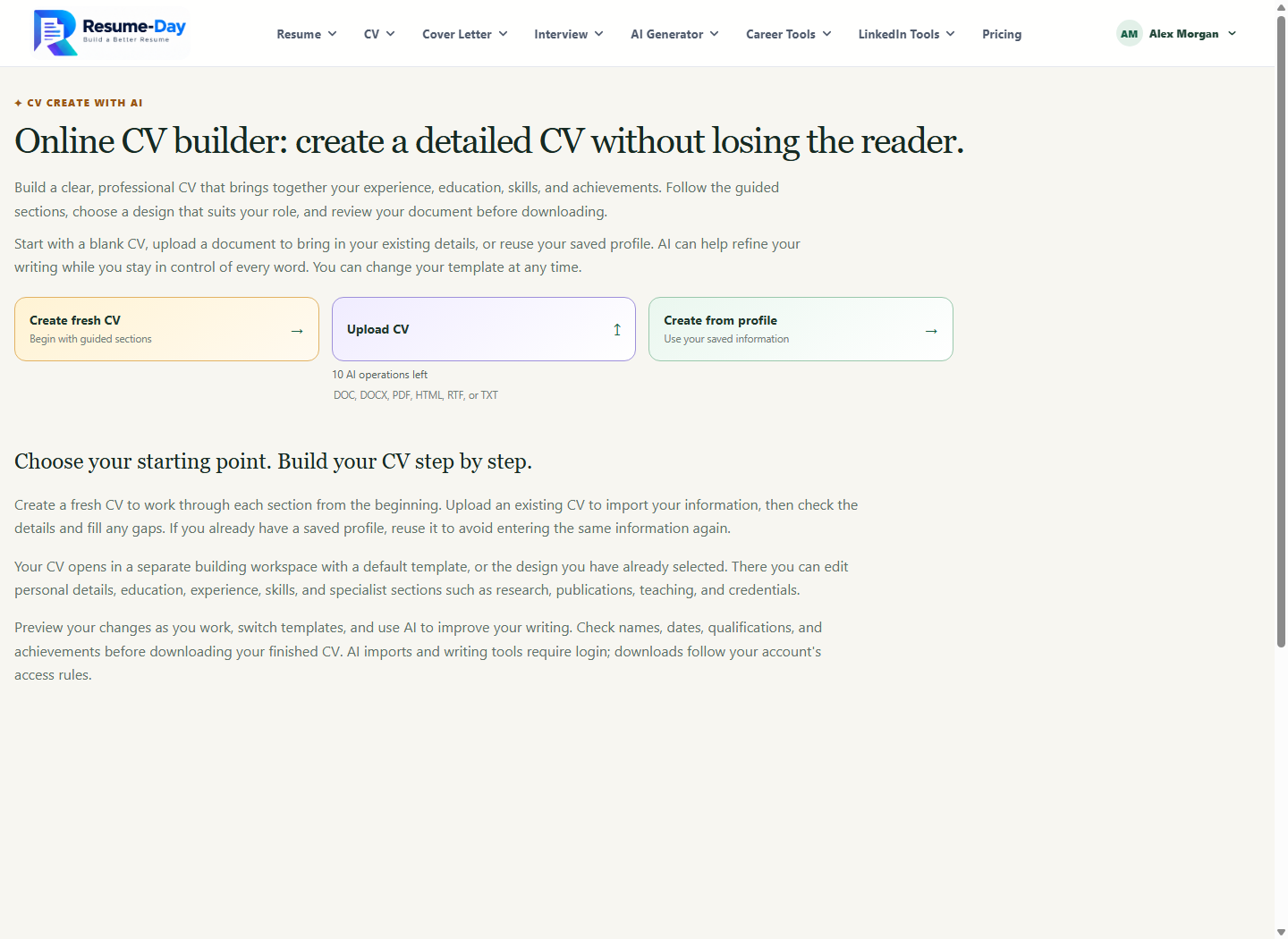
Keep in mind: Imports and saved-profile actions have their own sign-in requirements. Check the file types and size limit shown on screen.
Step 2 of 10
Add personal details
Start with the information a reader needs to identify and contact you. Your name, professional headline and location should be clear and consistent with your application.
- Enter your full name and a relevant professional headline.
- Add a current email address, phone number and location.
- Include a professional website if it supports the application.
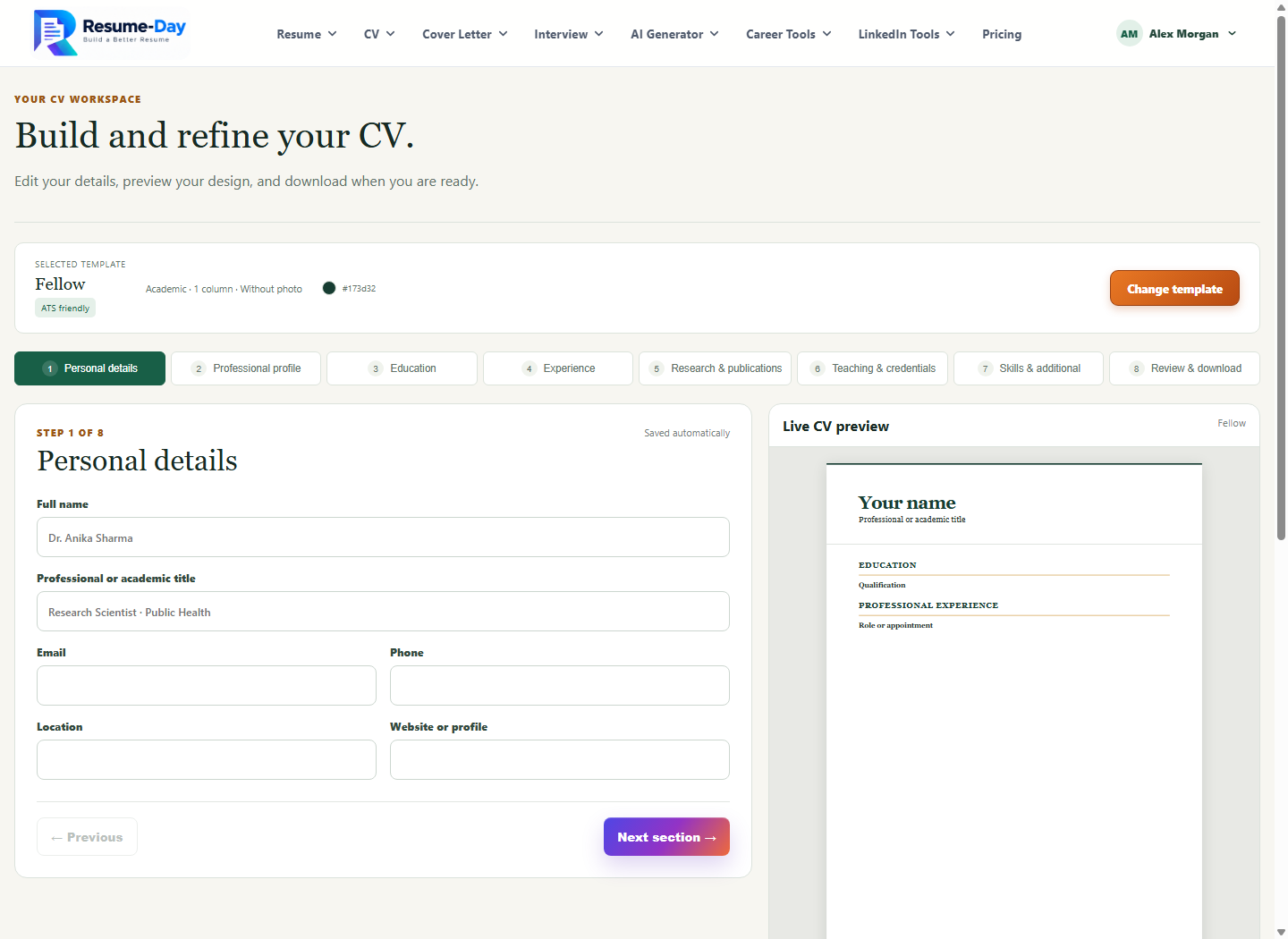
Keep in mind: Check spelling and contact details in the preview before moving on.
Step 3 of 10
Write your professional profile
Introduce your background, areas of expertise and the contribution you can make. Keep this overview relevant to the position rather than repeating every detail from the rest of your CV.
- Describe your current professional or academic focus.
- Mention relevant expertise and one or two concrete strengths.
- Review any optional AI suggestion for accuracy and natural wording.
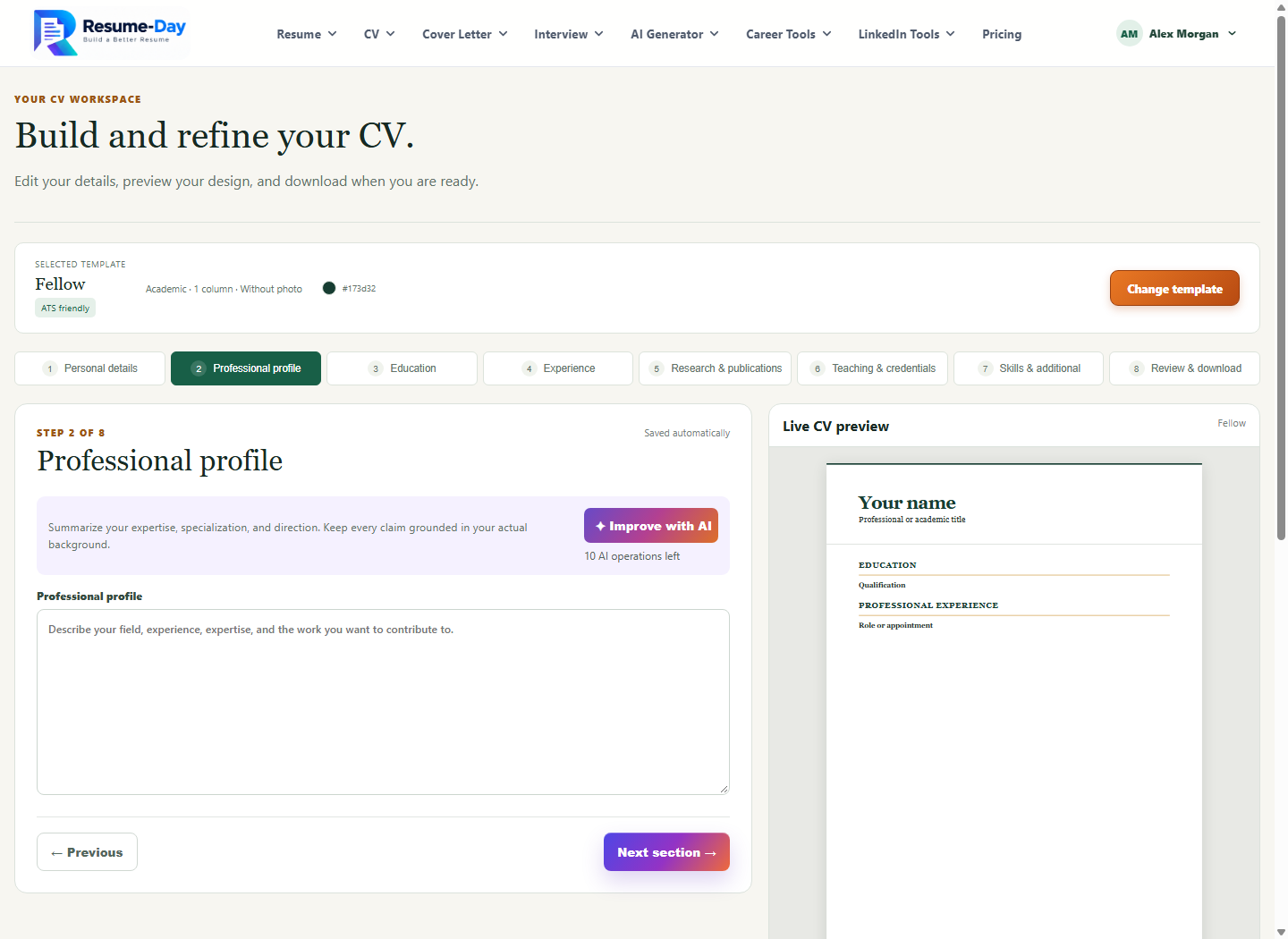
Keep in mind: Use specific evidence rather than unsupported claims such as expert or outstanding.
Step 4 of 10
Record your education
Provide an accurate academic history with qualifications, institutions and dates. Include relevant research, dissertations or distinctions when they help the reader understand your preparation.
- Add each relevant qualification and institution.
- Check locations and start and end dates.
- Describe relevant academic work without overstating your contribution.
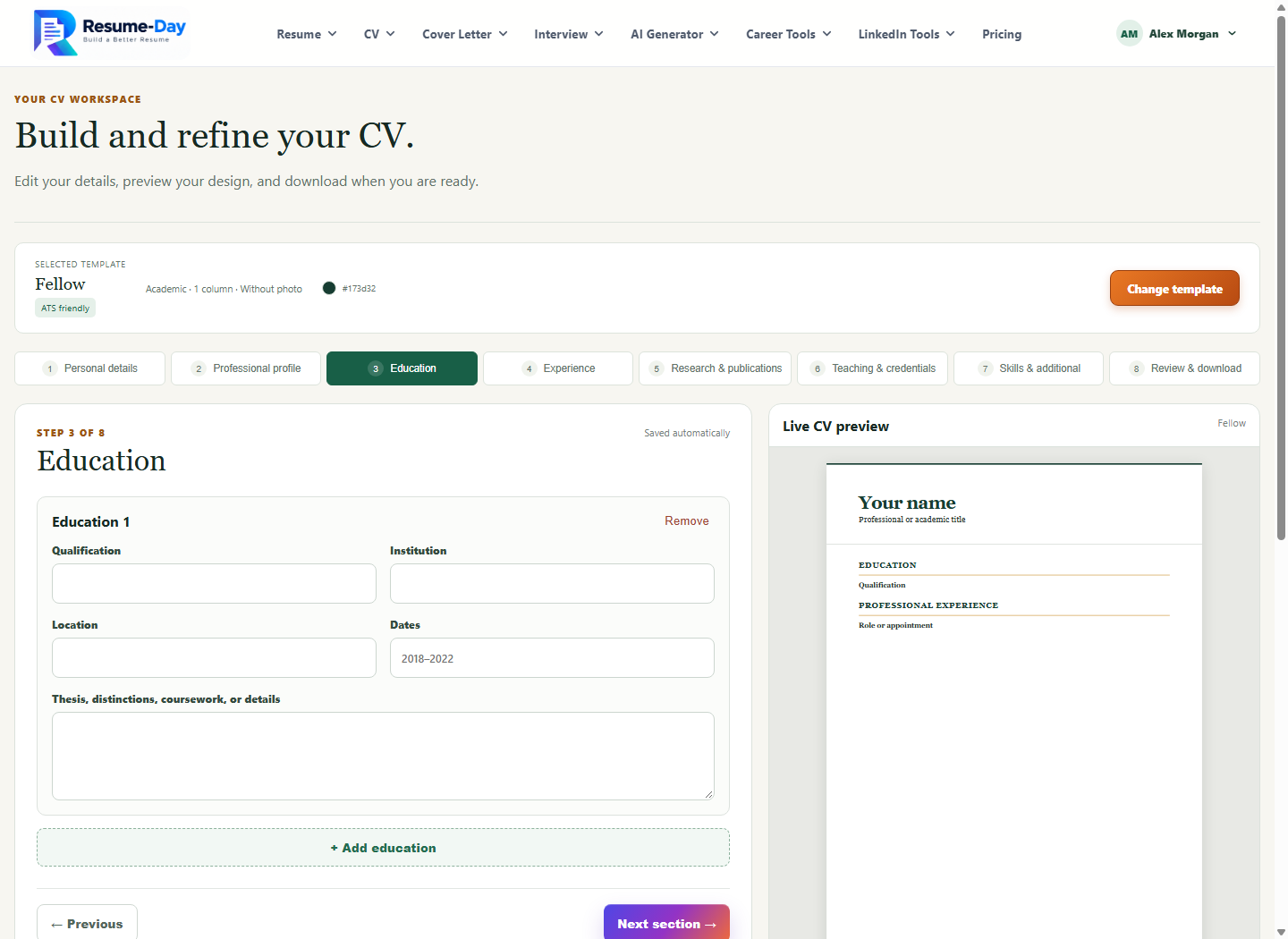
Keep in mind: Use consistent qualification names and date formats throughout the document.
Step 5 of 10
Explain your experience
Show what you did in each role and why it mattered. Include responsibilities, contributions and outcomes that match the opportunity, with enough context for someone outside your organisation.
- Enter the role, organisation, location and dates.
- Describe your actions and the scope of your responsibility.
- Add truthful results or examples that demonstrate your contribution.
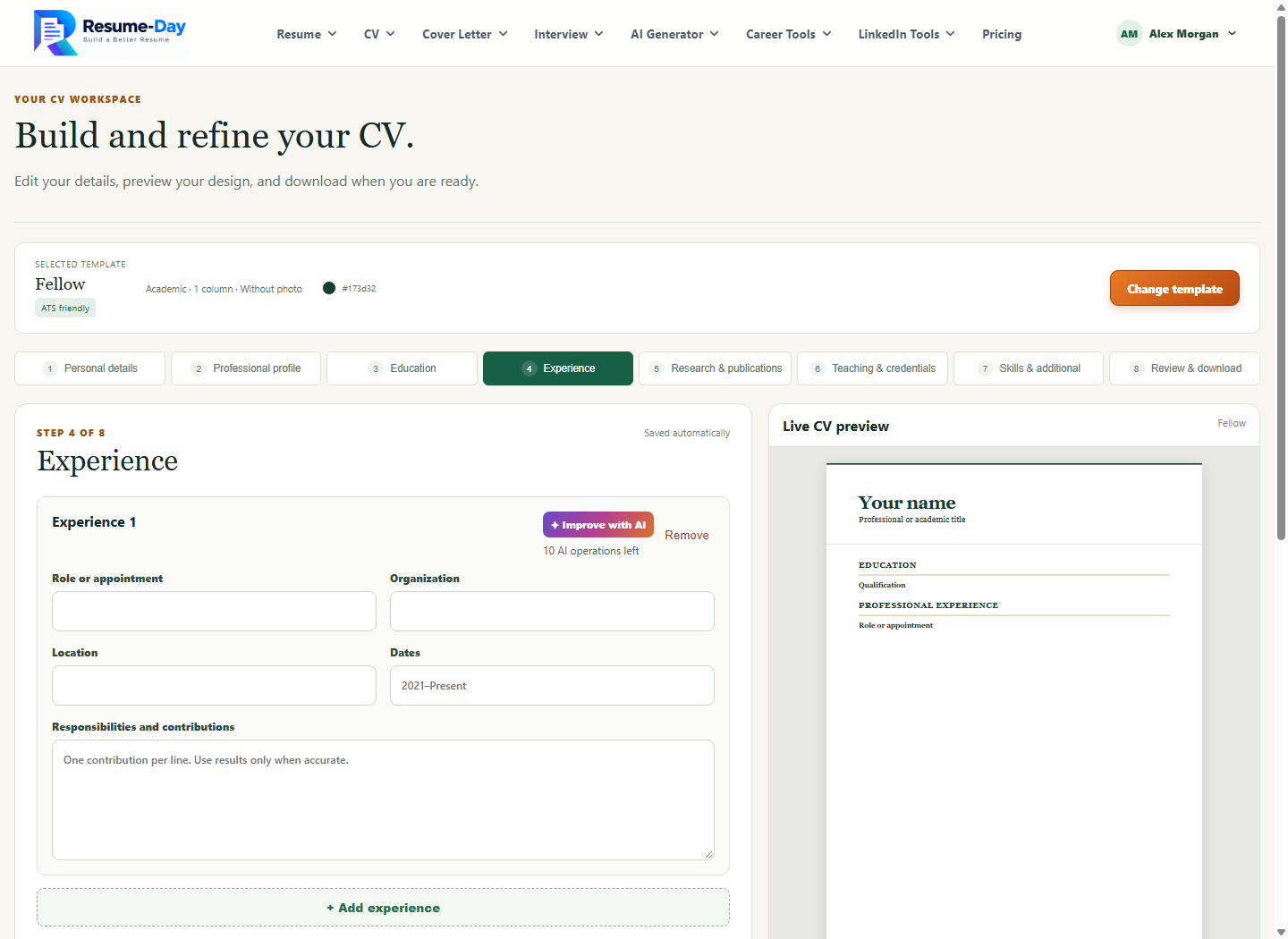
Keep in mind: Use measurable results where available, and never invent figures.
Step 6 of 10
Add specialist work and publications
This stage adapts to the selected template category. Academic designs emphasise research and publications, while professional, medical and teaching designs use labels relevant to their audiences.
- Read the section labels for your chosen template.
- Describe relevant projects, research or specialist work.
- List publications and presentations using a consistent citation style.
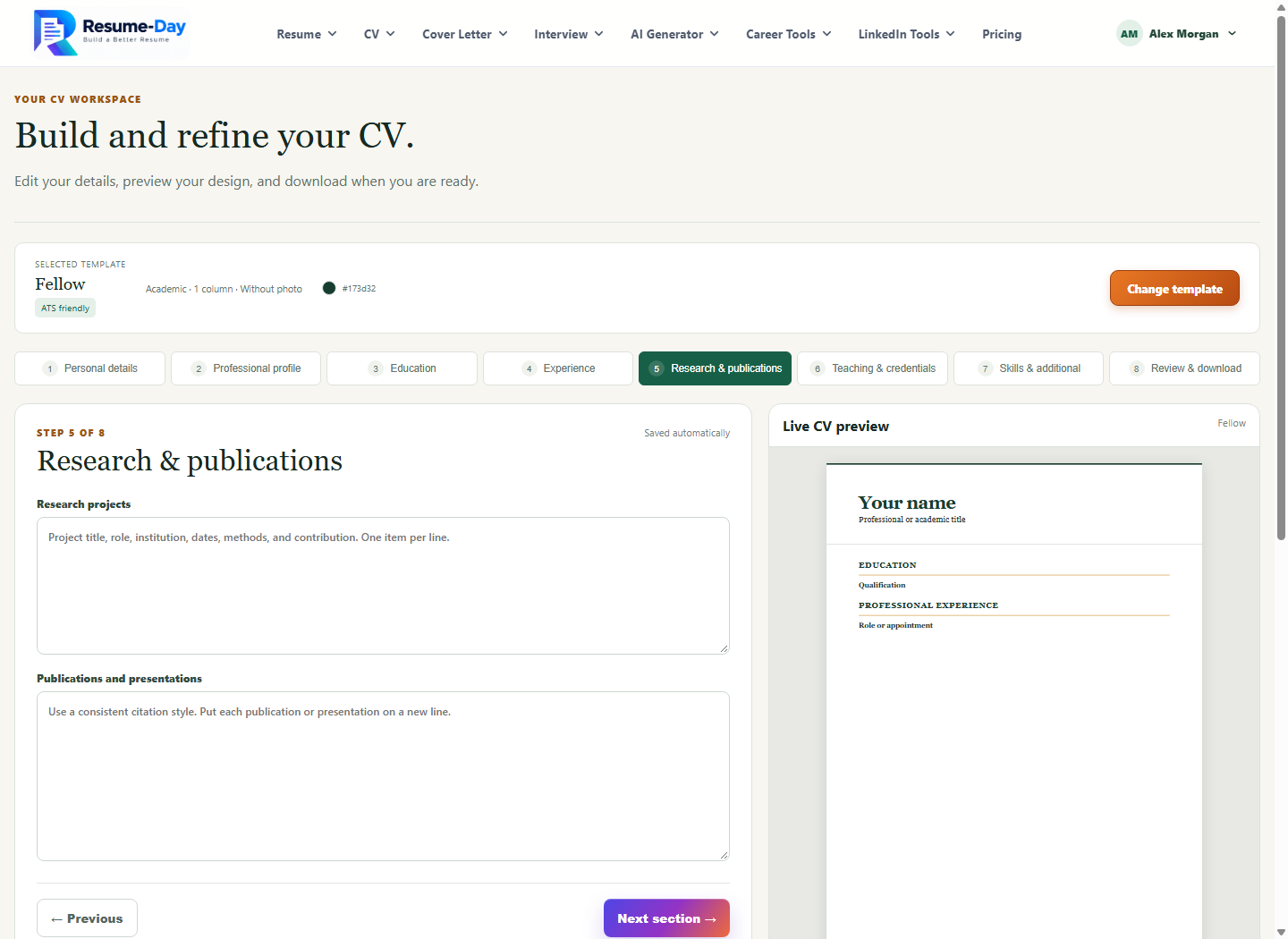
Keep in mind: Clearly distinguish published work, presentations and work still in progress.
Step 7 of 10
Include teaching and credentials
Add relevant teaching, supervision, mentoring and professional qualifications. The section names vary with the template category, so follow the prompts for your intended audience.
- Describe relevant teaching, supervision or mentoring.
- List licences, certifications and memberships with their issuers.
- Verify dates and the current status of each credential.
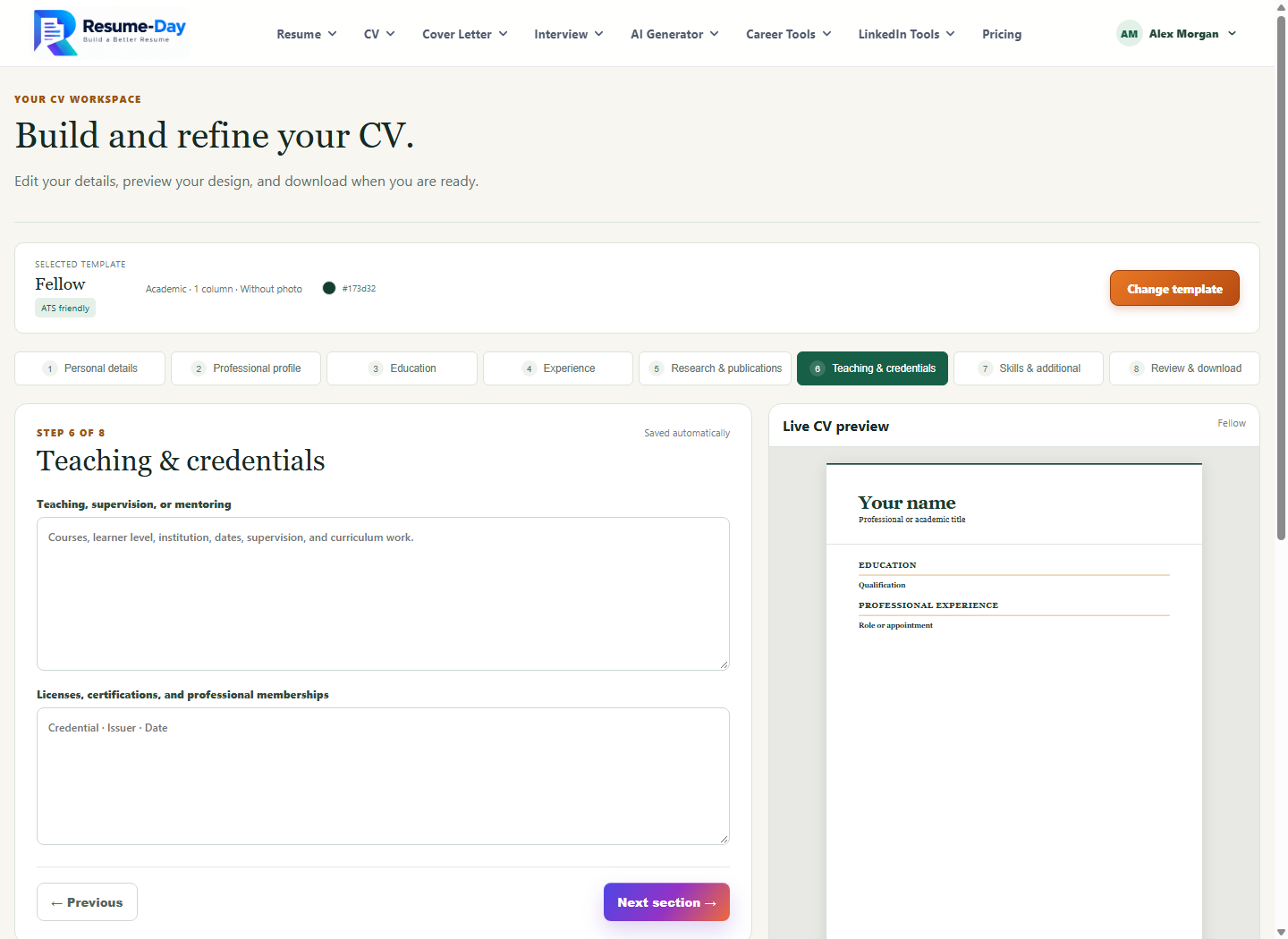
Keep in mind: Include only credentials you hold and identify expired qualifications where relevant.
Step 8 of 10
Complete skills and additional details
Use the additional sections to make relevant skills, languages, awards and service easy to find. Select information that adds useful evidence instead of filling space with unrelated details.
- List practical skills and tools you can demonstrate.
- Describe language proficiency accurately.
- Add relevant awards, grants, scholarships or service.
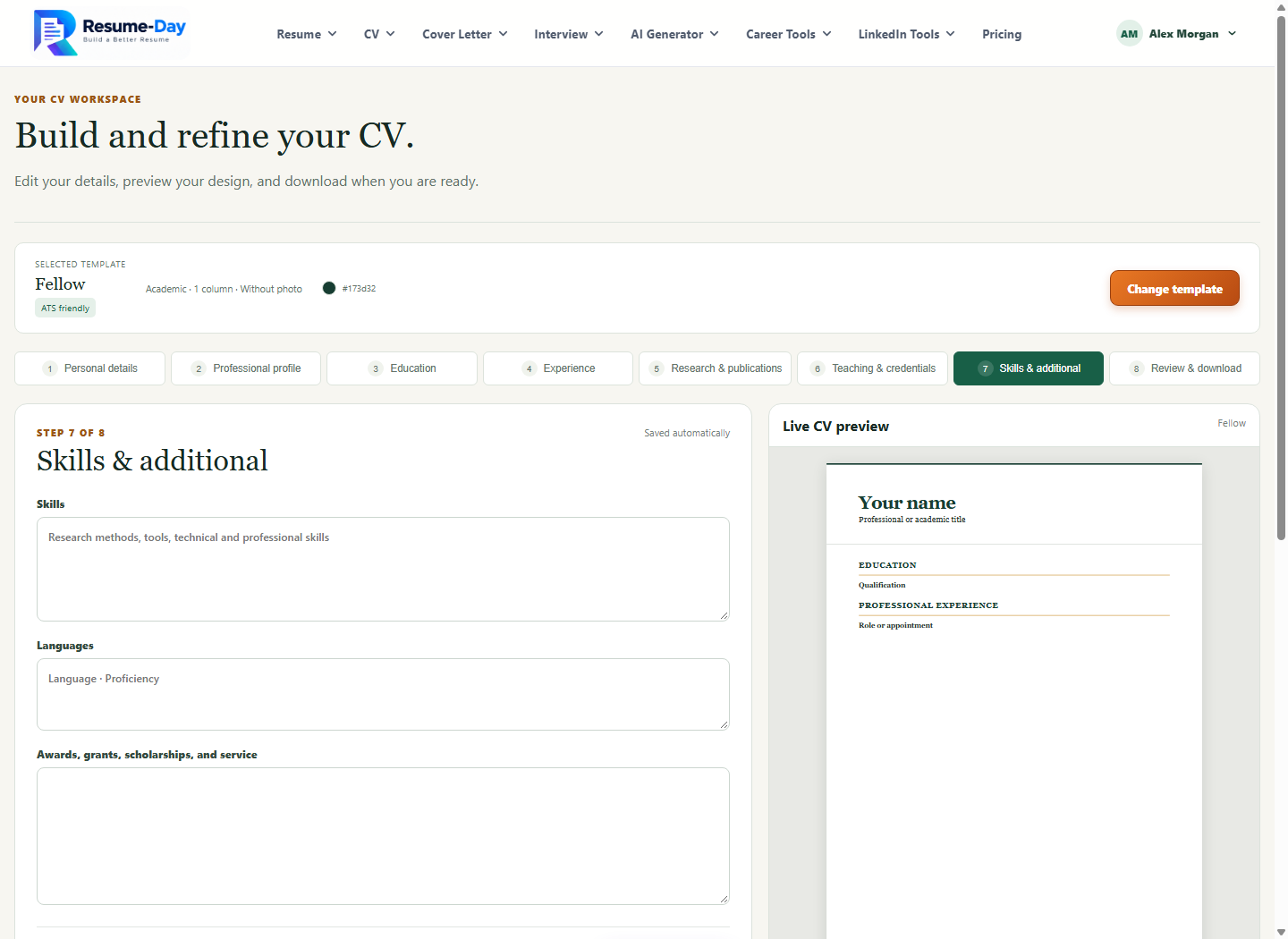
Keep in mind: Prioritise the requirements of the role or institution receiving your CV.
Step 9 of 10
Review your design and content
Review the complete CV before export. You can browse templates and adjust the preview size here, then return to an earlier section if a detail needs correction.
- Check names, dates, citations and qualifications.
- Inspect the preview for readable text and balanced sections.
- Try another template if the structure suits your content better.
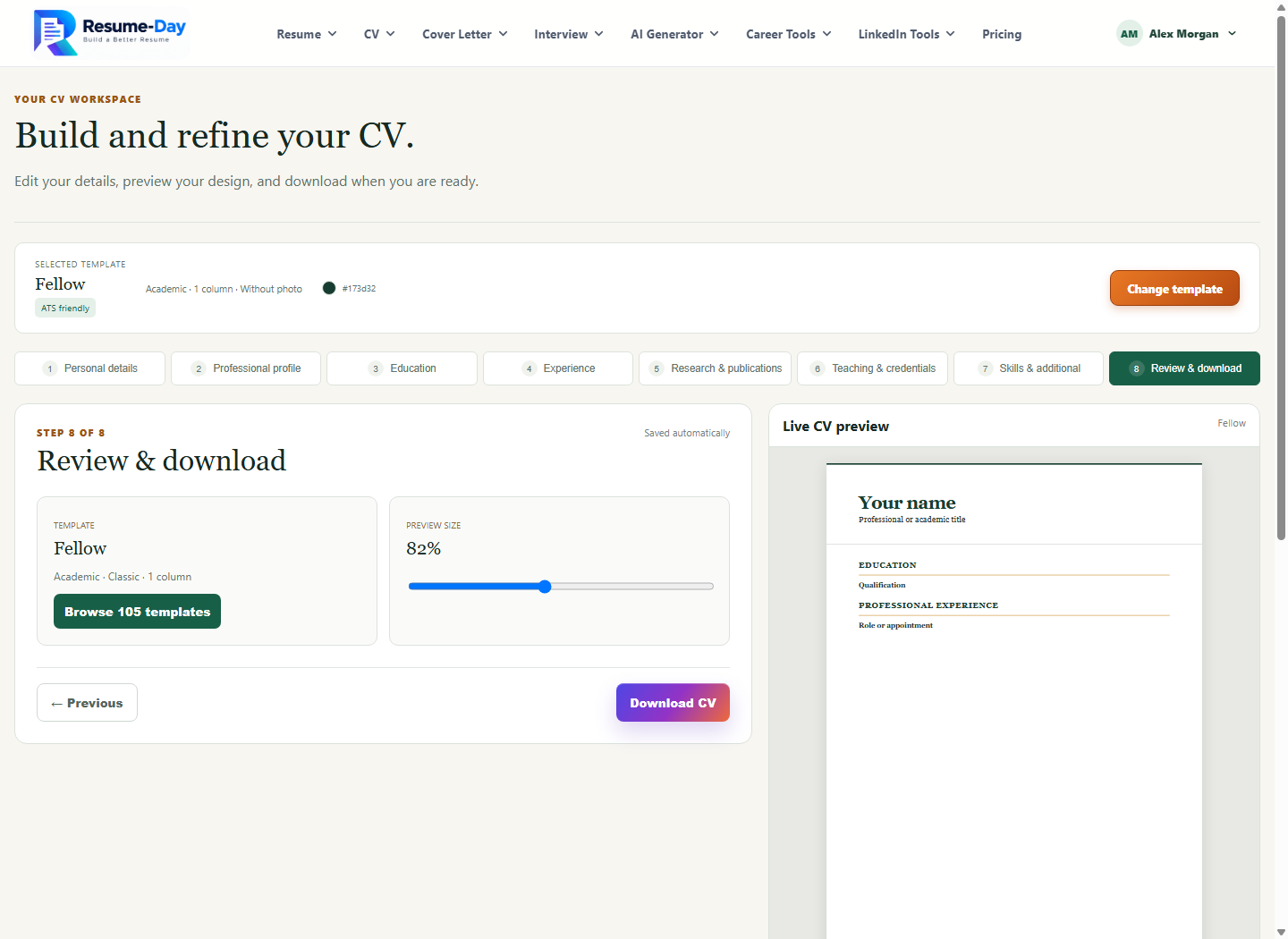
Keep in mind: Preview zoom changes the viewing size; inspect the final downloaded file as well.
Step 10 of 10
Choose a download format
Select Download CV to open the format choices. Choose the document type appropriate for the application, then inspect the exported file before submitting it.
- Open Download CV after completing your review.
- Choose PDF or plain text from the download dialog.
- Open the saved file and confirm that its content is complete.
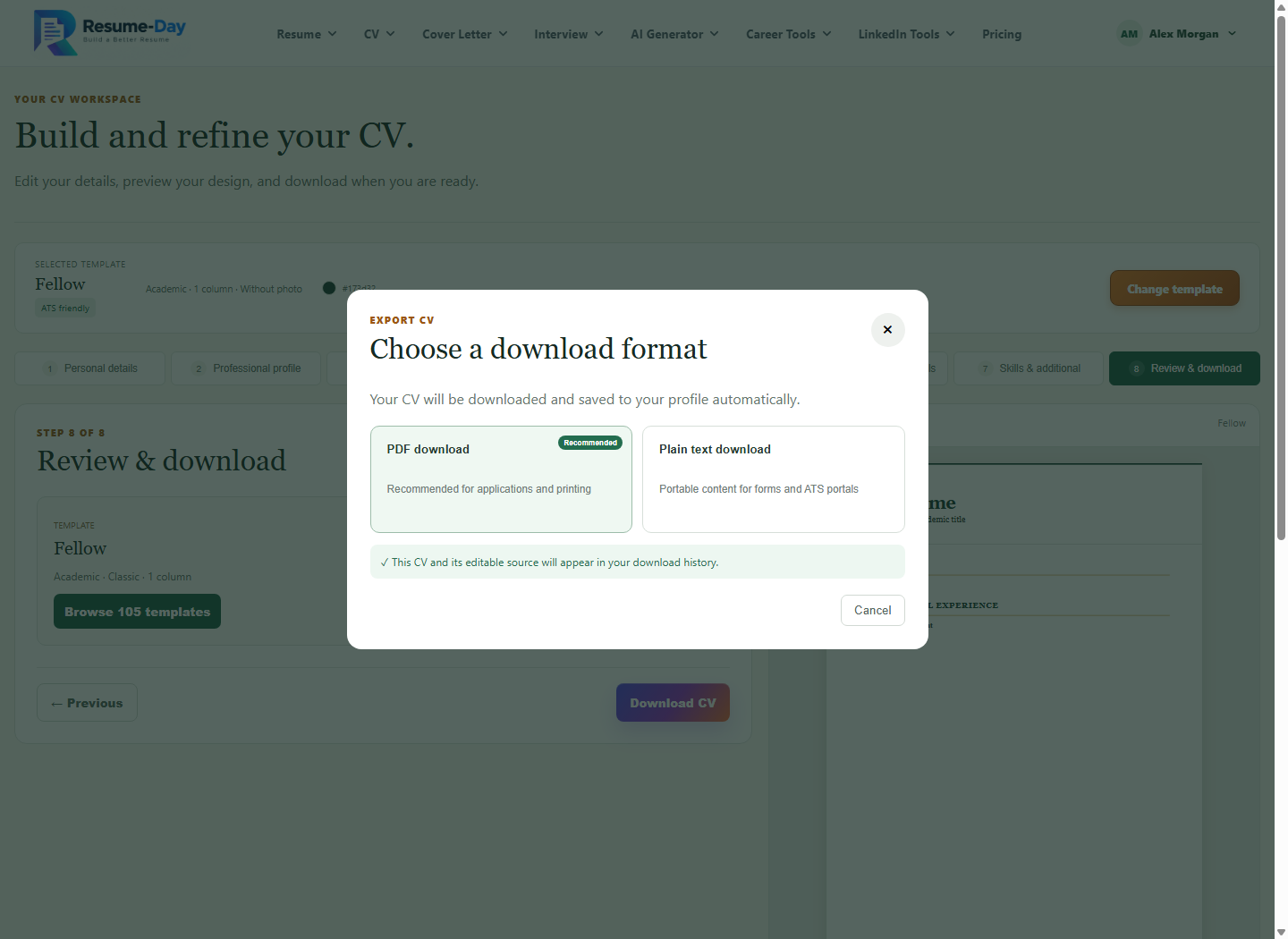
Keep in mind: Downloads follow your account access rules. Premium designs may require a template unlock.