Step 1 of 5
Choose a template and set your purpose
Open the cover letter builder, check the selected design and explain why you are writing. Purpose, tone and length help shape the letter you will review in the final stage.
- Use Change template to browse designs if needed.
- Choose the purpose, tone and preferred length.
- Add any instructions about what the letter should emphasise.
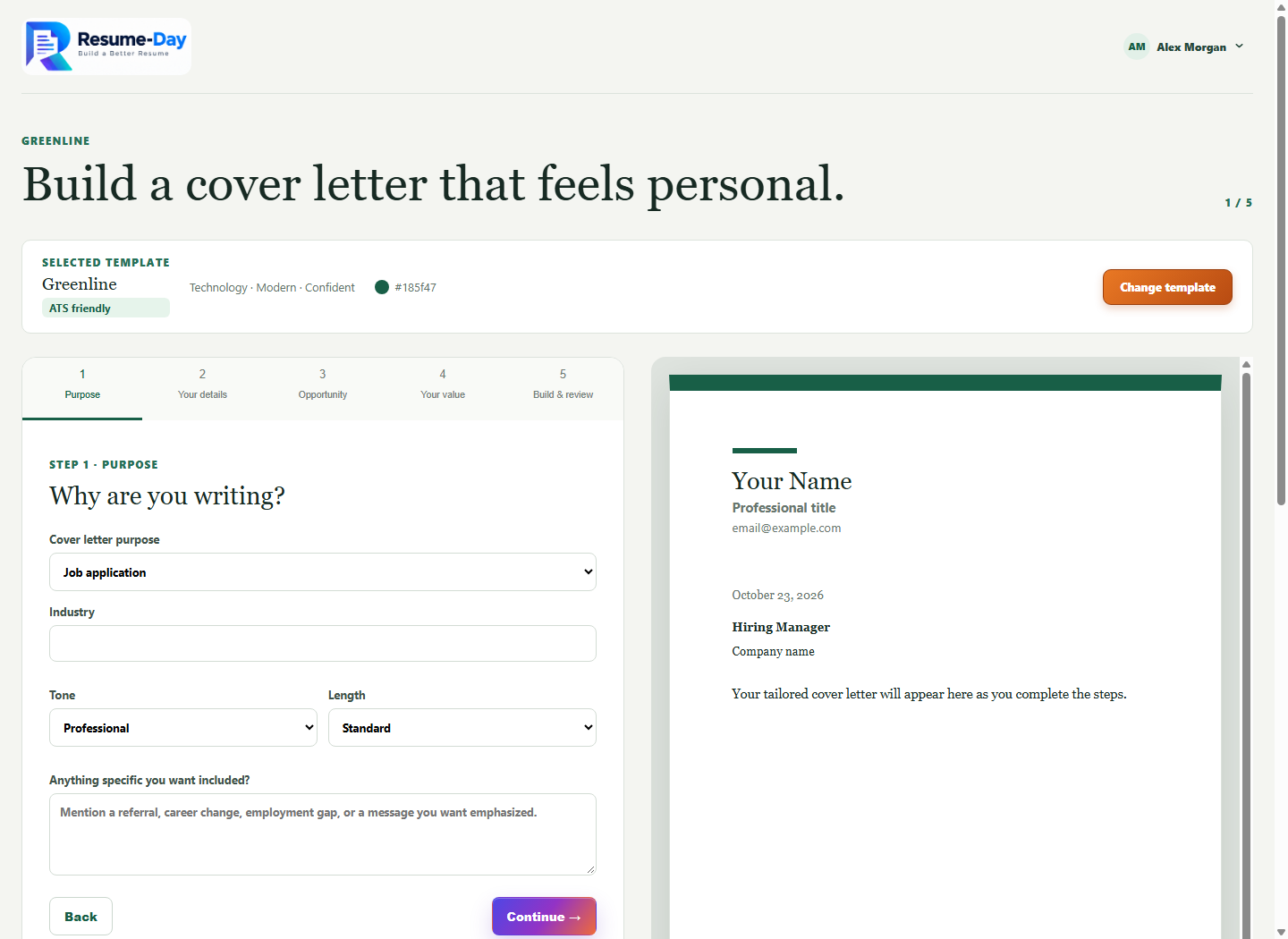
Keep in mind: Choose a tone that fits the employer and still sounds like you.
Step 2 of 5
Enter your contact details
Add the details an employer will use to reach you. Keep your identity and contact information consistent with your CV or resume so the application feels coherent.
- Enter your first and last name.
- Add a working email address and telephone number.
- Check your city and the contact information in the preview.
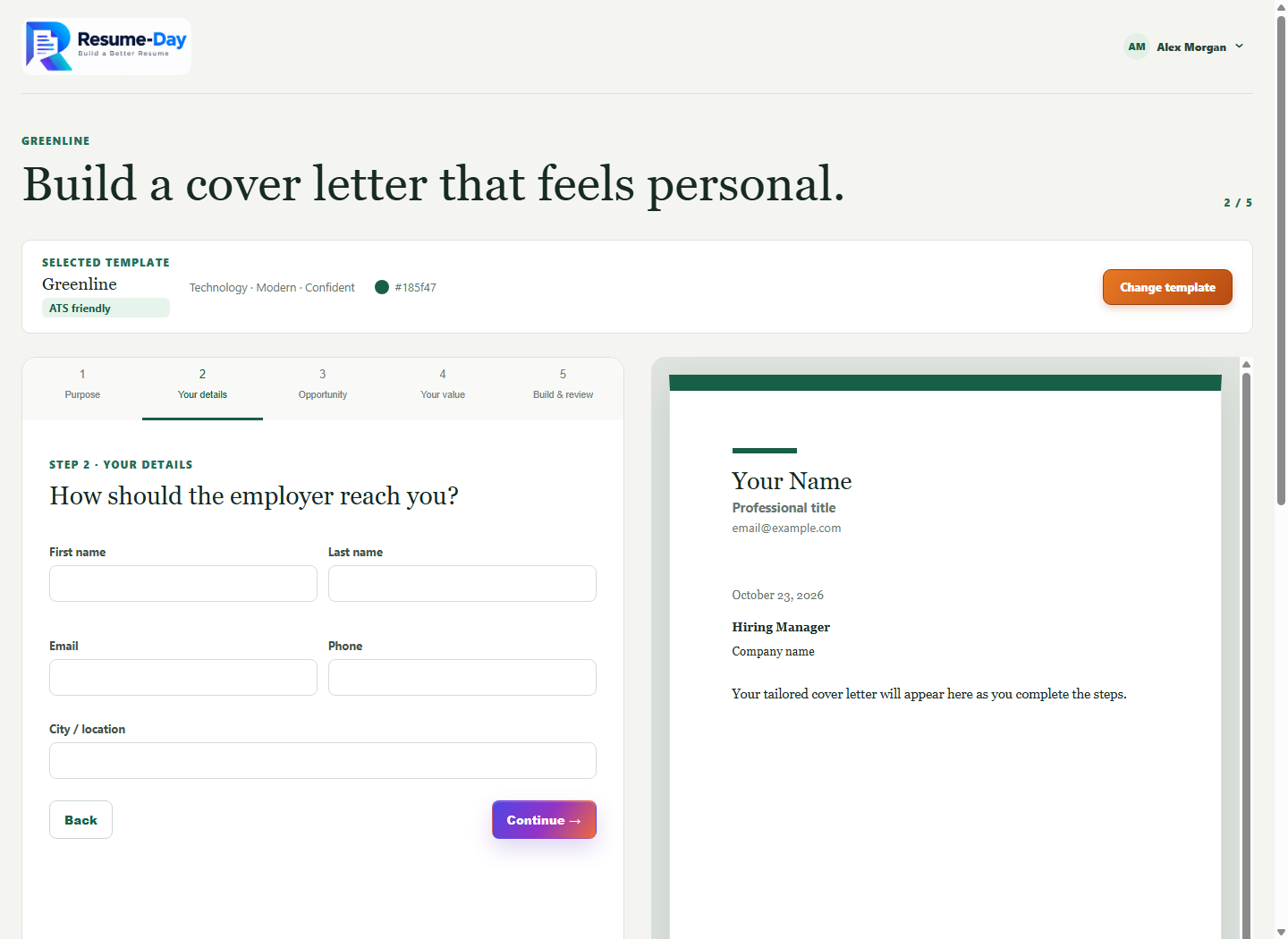
Keep in mind: Use a professional email address that you check regularly.
Step 3 of 5
Describe the opportunity
Give the builder context about the position and employer. A precise job title and vacancy description help you connect your background to the actual requirements of the role.
- Enter the job title and company name.
- Add the recipient and industry where known.
- Paste the relevant job description and check its accuracy.
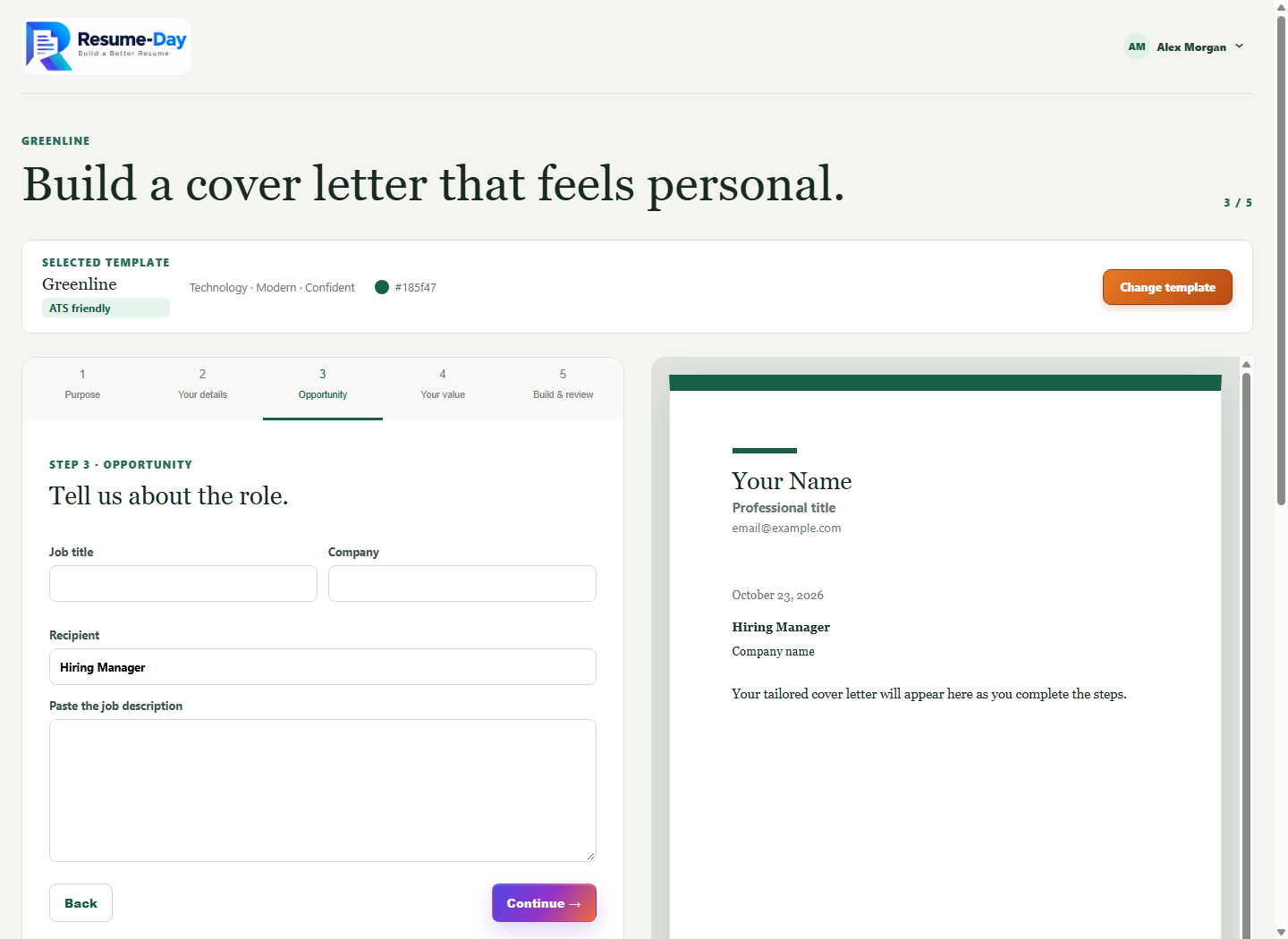
Keep in mind: Use Hiring Manager when you cannot verify the recipient’s name.
Step 4 of 5
Explain the value you bring
Describe relevant experience, strengths, a real achievement and your motivation. These details are the substance of a convincing letter, whether you write it yourself or use optional assistance.
- Choose your experience level and describe relevant work or projects.
- Add strengths supported by a concrete achievement.
- Explain why this employer and opportunity interest you.
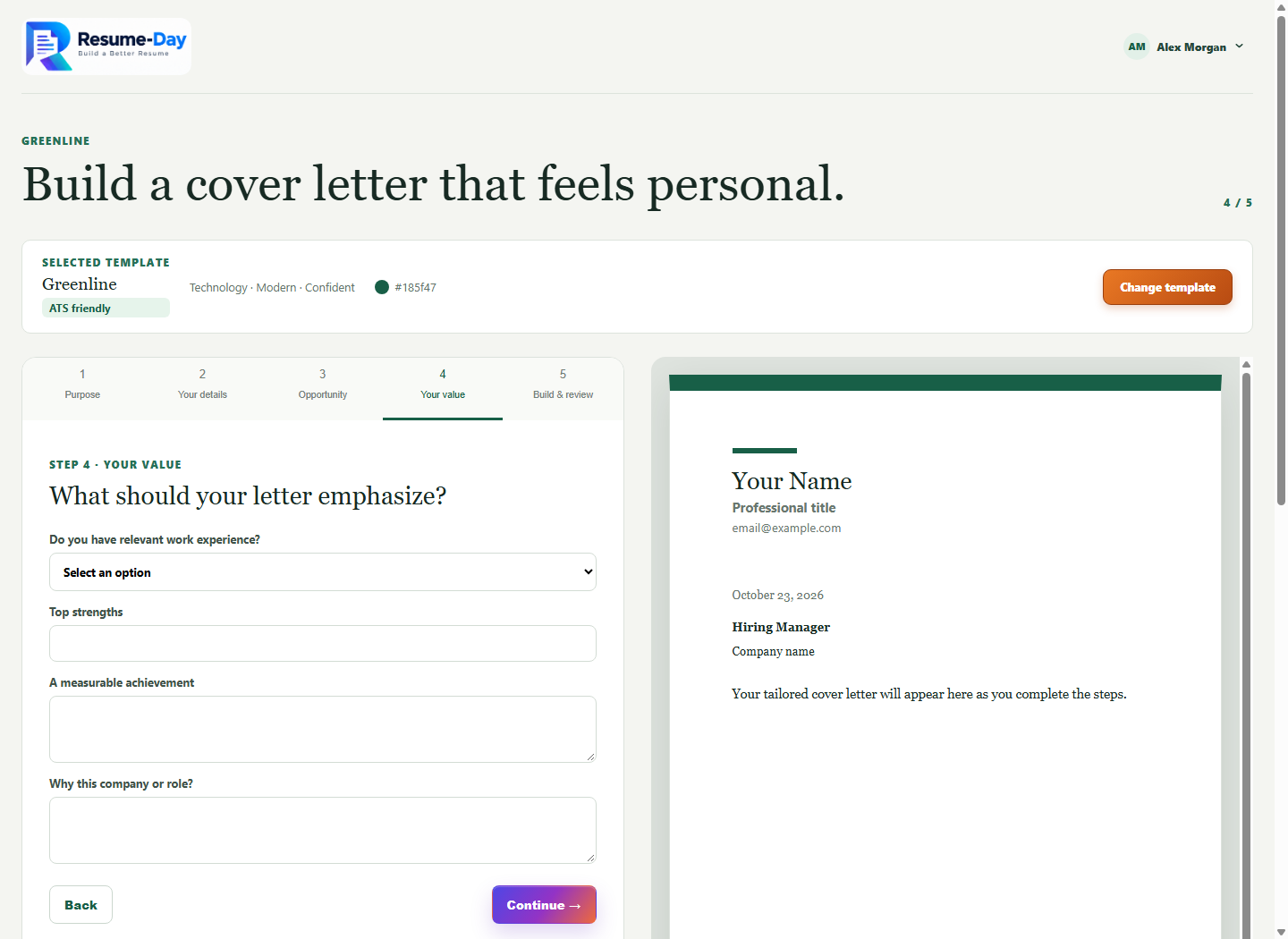
Keep in mind: If you are a fresher, use genuine projects, study, volunteering or internships as evidence.
Step 5 of 5
Edit, review and download your letter
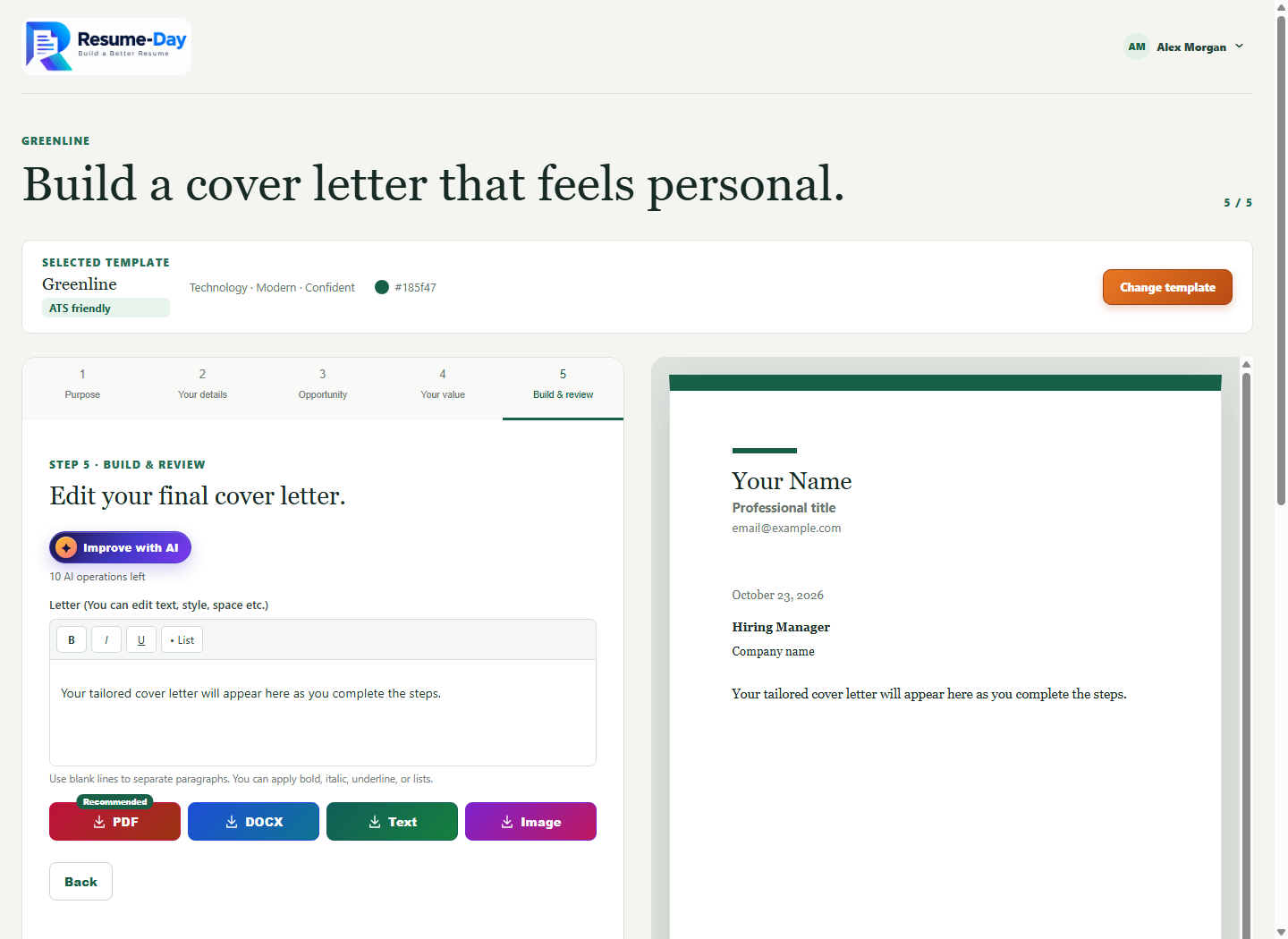
Read the complete letter in Build & review and edit it for accuracy, clarity and relevance. Check the live preview, then choose a download format that meets the employer’s instructions.
- Review the opening, evidence, motivation and closing in the editor.
- Check the employer name, job title and every factual claim; use AI improvement only if useful.
- Choose PDF, DOCX, Text or Image and inspect the saved document.
Keep in mind: AI actions and downloads follow account access rules. Always review suggestions before using them.